To set up Ad Blocking Recovery, you must already have an AdSense account approved to show ads. The entire process from start to finish shouldn’t take longer than 15 minutes.
- Login to Google AdSense and navigate to the ad blocking recovery section
You must have a valid Google AdSense account to set up ad blocking recovery. First, log in to your AdSense account and click on the “Privacy & Messaging” tab on the left-hand side of the page. Click on the “Ad blocking recovery” card at the bottom of the page. Click “Continue” on the next page.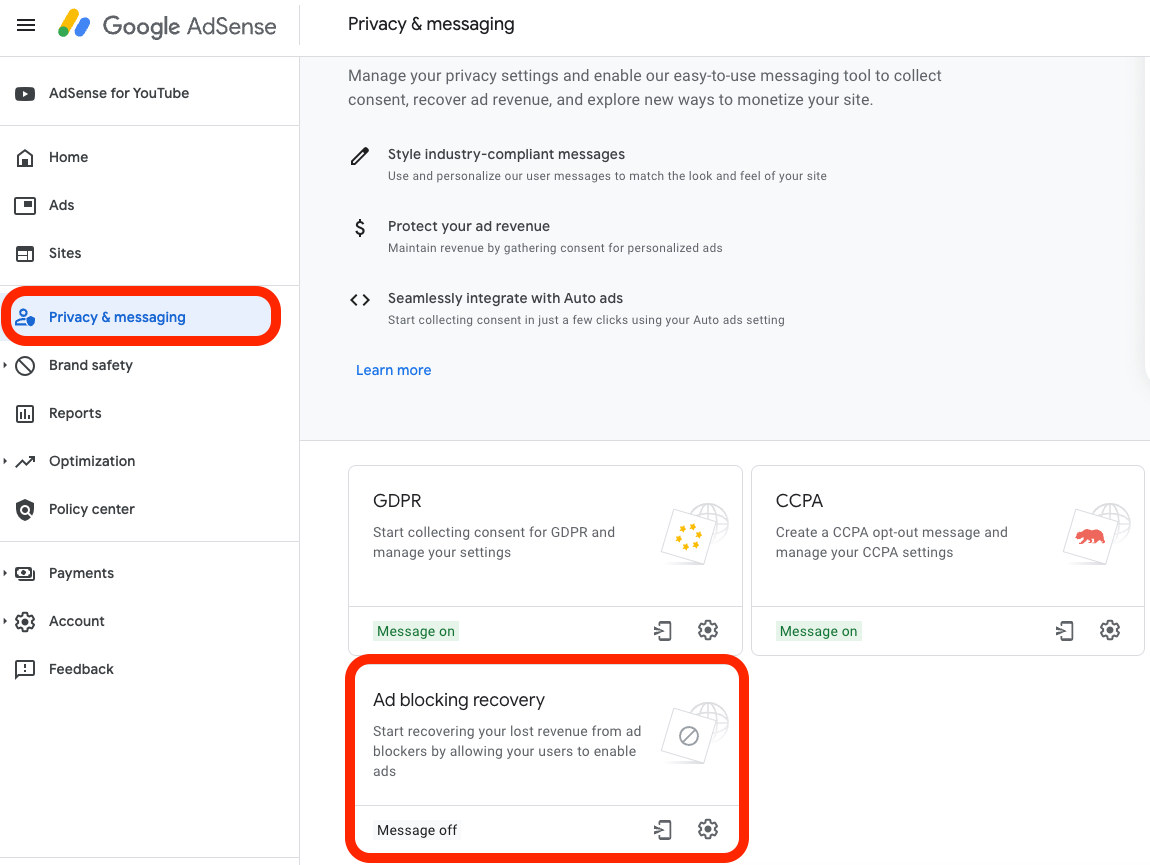
- Click “Create message” to start creating your message
On this page, you’ll see three tabs, “Messages”, “Tagging”, and “Settings”. On the “Messages” tab, click on “Create message”.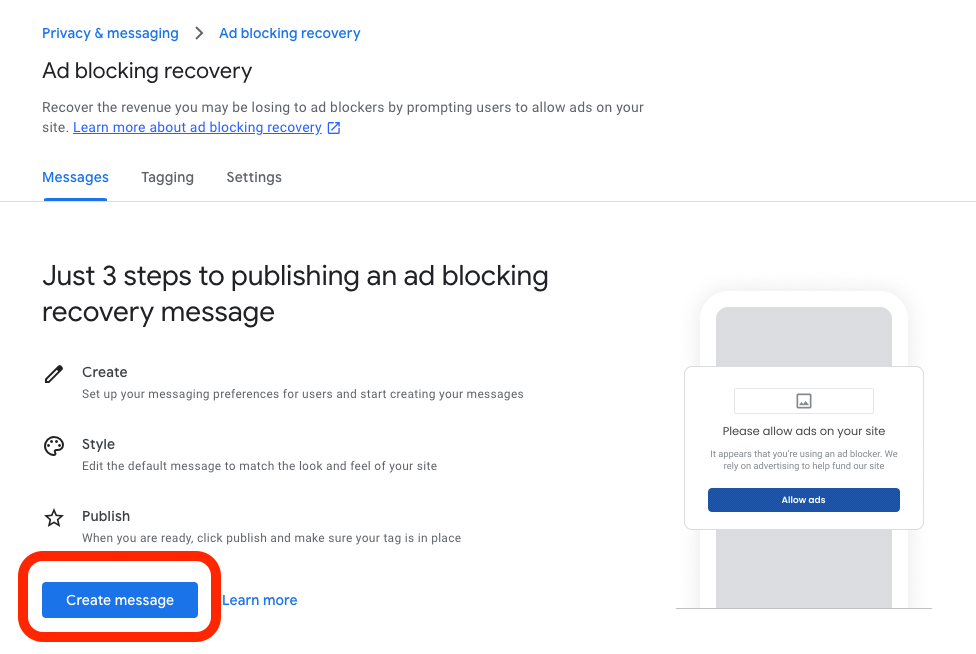
- Add your site and site logo
Add all the websites that you want to show the message to by clicking on the “Add site” button. When you select a site, you have the ability to add a logo, custom choice URL, and Footer URL. Click on “Add” under the Logo column to upload a logo that you’d like to display on the site. We’re not going to add a custom choice URL or Footer URL at this time, but you can come back and change these settings later if you’d like. 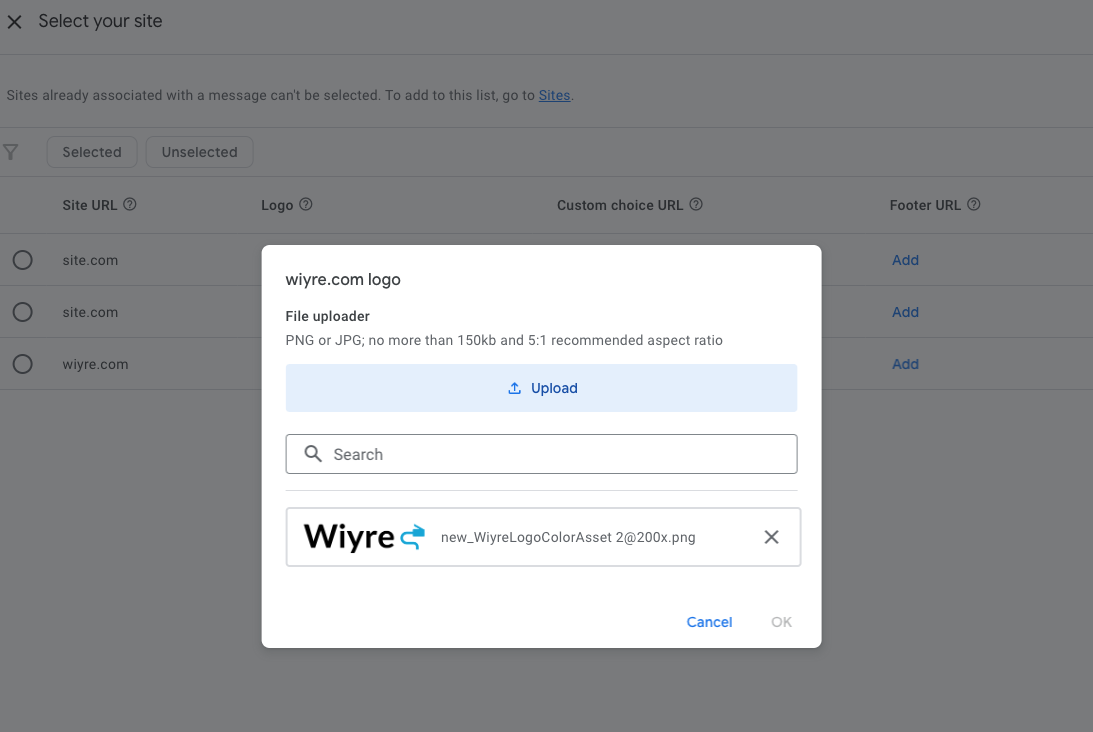
- Add a language and select user ad blocking options (optional)
Select the primary language that your users who visit your site can read, along with any other languages that your visitors might read as well. You also have the ability to “Add custom solution”, but this is meant for more advanced users so it’s best to leave this option unchecked. Click on “Continue” to proceed to the next step. 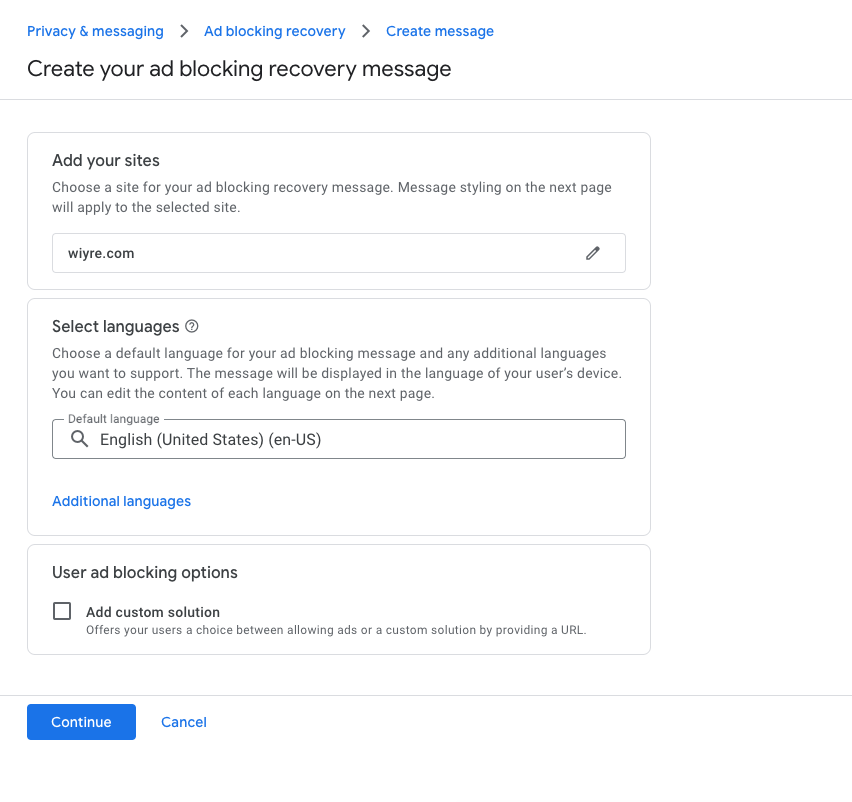
- Design your message
Click on the paint icon in the right-hand corner to design a message. You can change the font, font size, colors, and overall layout of your message that is displayed to users who have ad blockers turned on.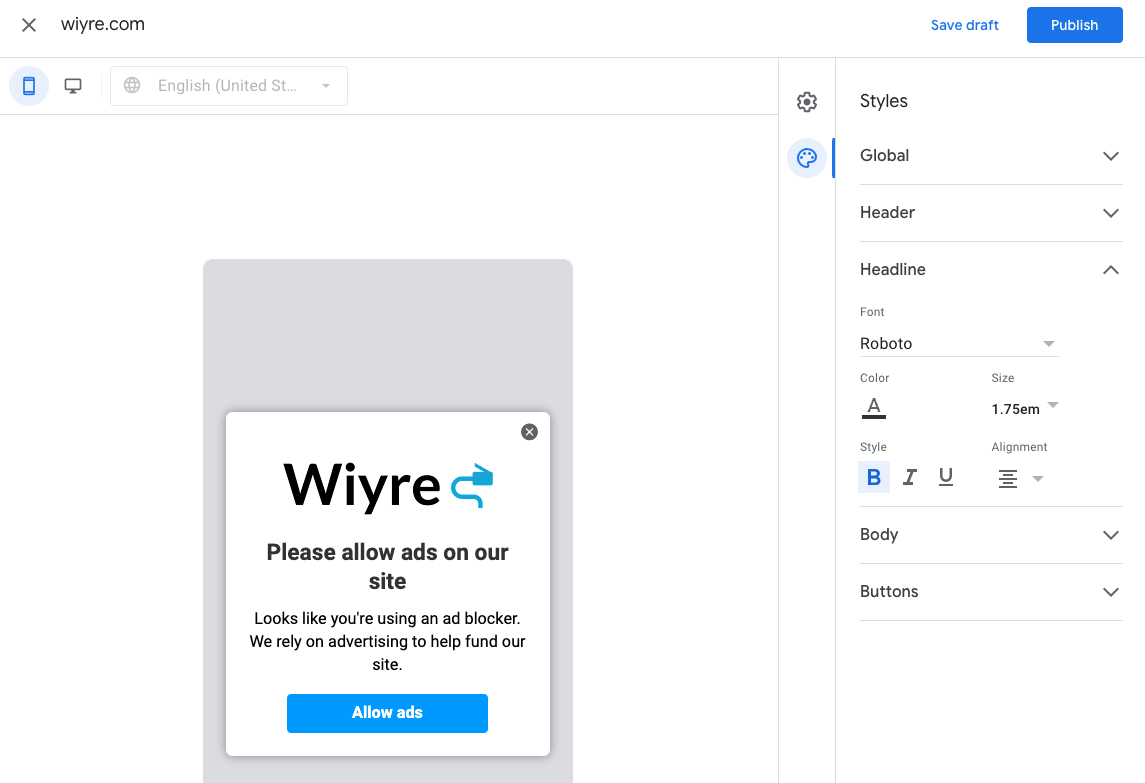
- Publish your message and find the
When you’ve finished designing your message, click on the “Publish” button to be taken back to the privacy and messaging section of AdSense. Now it’s time to grab the tagging code that needs to be placed in the header of your website. Click on the “Tagging” tab and you’ll see an Ad blocking recovery code that can be copied.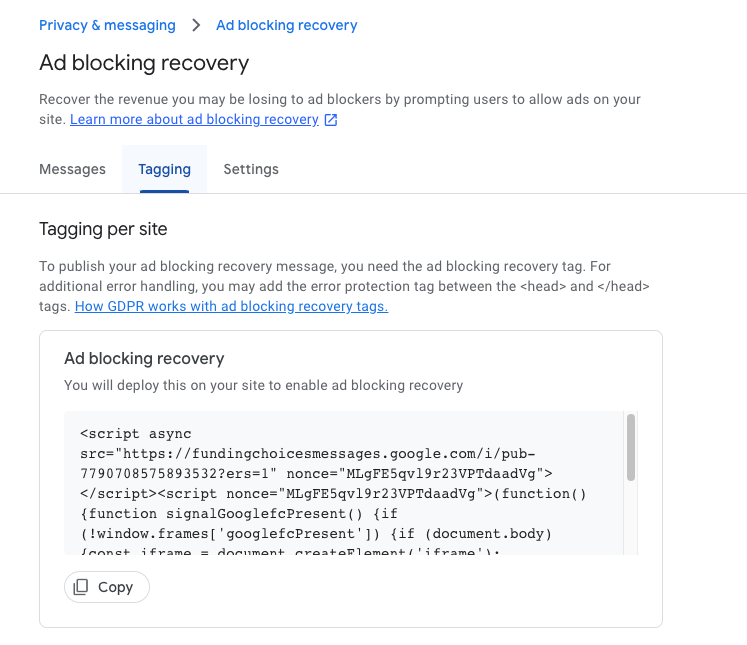
- Add the code to the header of your website
Now all you need to do is add the code you copied to the header of your website. To do so in WordPress, the easiest way is by downloading a Header or Footer plugin and pasting the code in the header section. A good plugin to use is WPCode – Insert Headers and Footers, available for free from the WordPress plugin website. Once you install the plugin, go to the plugin settings and paste the code you copied from AdSense in the header area and click save.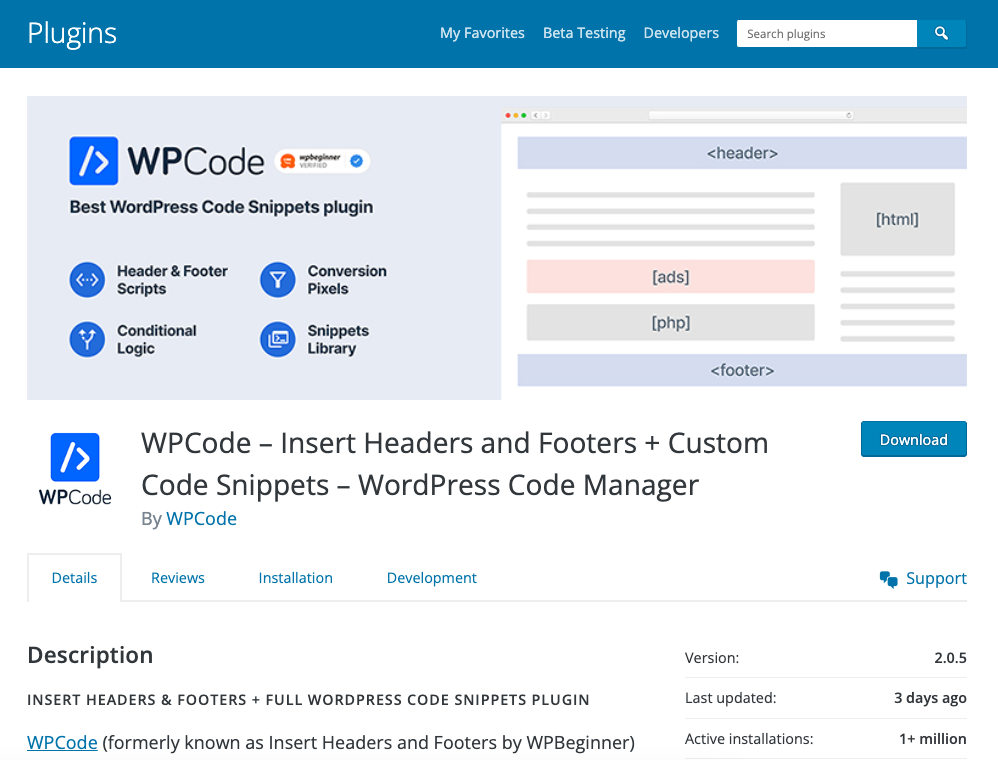
- Check that your message is showing properly
Once you save the code in the header of your site, check to make sure that the message is working properly by navigating to your website with an Ad Blocker turned on. If you’re successful, you should see a message appear that instructs you to please turn off your ad blocker