- This field can be empty depending on user input.
- This contact form has a configuration error.
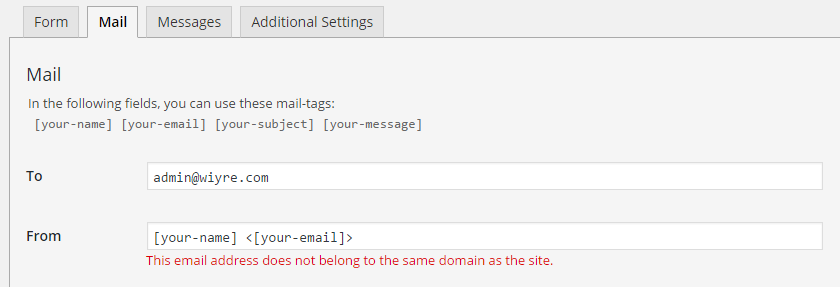
- This email address does not belong to the same domain as the site.
Why do so many updates to this plugin cause issues? Well – it may not be entirely their fault over at Contact Form 7 – apparently from what I’ve gathered, email service providers are blocking messages that do not meet the configuration errors outlined by the contact form, although I personally haven’t had an issues with BlueHost and their mailbox configuration.
If you really want to get rid of the configuration errors and enable your visitors to send email again, we’ve found a solution. Luckily we found some ways work around this inconvenience until they decide to revert it back to the old configuration or just just ensure a way for the contact from to work otherwise.
The error looks like this:
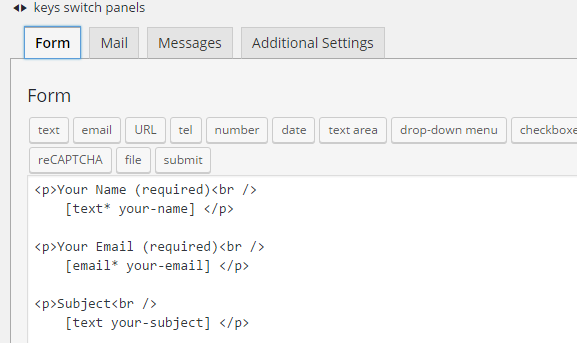
This error means that there are options in your contact form that are not required, so if a user leaves this blank, sometimes the email will be sent but marked as spam by your web host. To fix this issue, go back to the contact form edit page, then put a star (asterisk) next to each user input option requiring the user to put content for each category. See below for an example:
See the stars next to the “Your Email” option above? (The asterisks next to email) Put an asterisk next to “text” underneath the Subject, then click save. That will solve this configuration error.
Solution to: “This email address does not belong to the same domain as the site.”
This one is truly baffling. Apparently, the only way to fix this error is to change the “From” settings in your contact form to have the senders address to be your own email address or another email address from your web server. Now, you may be asking “But that doesn’t make any sense! I want to the “From” address to be the users address, not my own!” To which we respond: Yes, we completely agree. It makes no sense why this is required – but in order for the error to go away, this is the only solution we have found so far. (If someone from Contact Form 7 could let us know WHY this is required, we would love to include it in this post.)
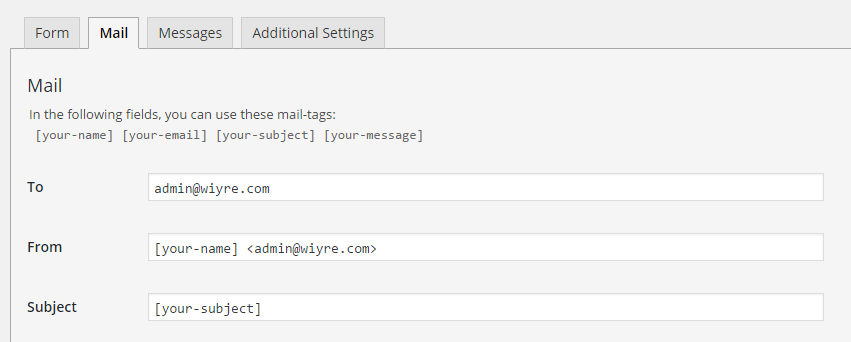
To get rid of this error, change the current “your-email” to admin@yourdomain.com OR the email address that you receive messages from. It is also possible to create a new email address specifically for this purpose, you could name it “no-reply@yoursite.com”. See below for an example.
Make sure that you also remove the brackets [ ] that existed before, or else you will get a syntax error.
If you solve these errors – the error “this contact form has a configuration error” will go away.
If you have additional errors not answered above – please leave them in a comment below and we will try our best to address them.
Updates:
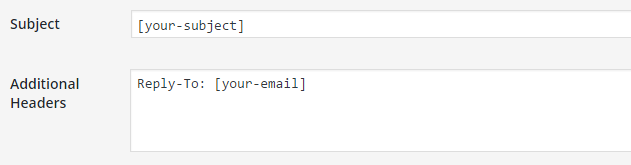
As David has pointed out below, once you perform the above actions, you will be unable to respond to the customer by clicking on the “Reply” button in your email. To circumvent this issue, you need to add the following into your “Additional Headers” section in the settings of Contact Form 7.
Below is a screenshot that will fix this issue:
Once you do this, you’ll be able to reply directly to the customer/user that sent the contact form.
If you’re a bit more tech savvy and if allowing visitors to send emails to you is a critical function of your site, you can use a scripted browser from New Relic which navigates to your site and attempts to send an email using the Contact Form 7 form. The process of setting up a scripted browser is very similar to our guide on how to setup a website downtime detector, but requires a bit more work in order to check ot see that your contact form is working correctly. If you do set it up correctly, you’ll be alerted if the email is not sent or if the contact form has an issue.
If you have other Contact Form 7 issues that are not solved here, please leave a comment and we will update this article with additional details on how to solve it.